On-model photography for Shopify: build a consistent product gallery
A collection page needs visual consistency. A product page needs enough detail to make a decision. Build an on-model workflow that supports both, with a clear review step between generation and upload.
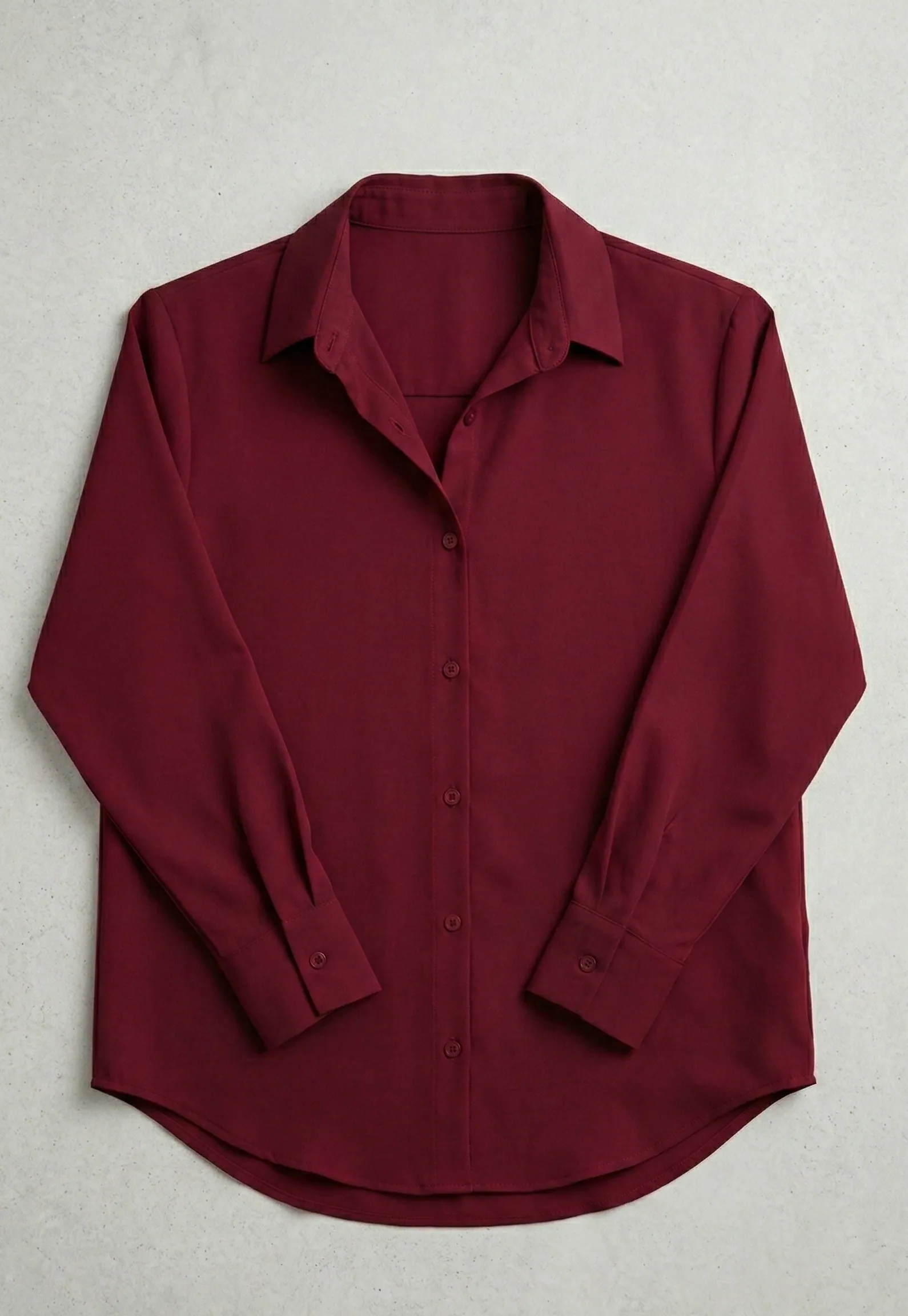
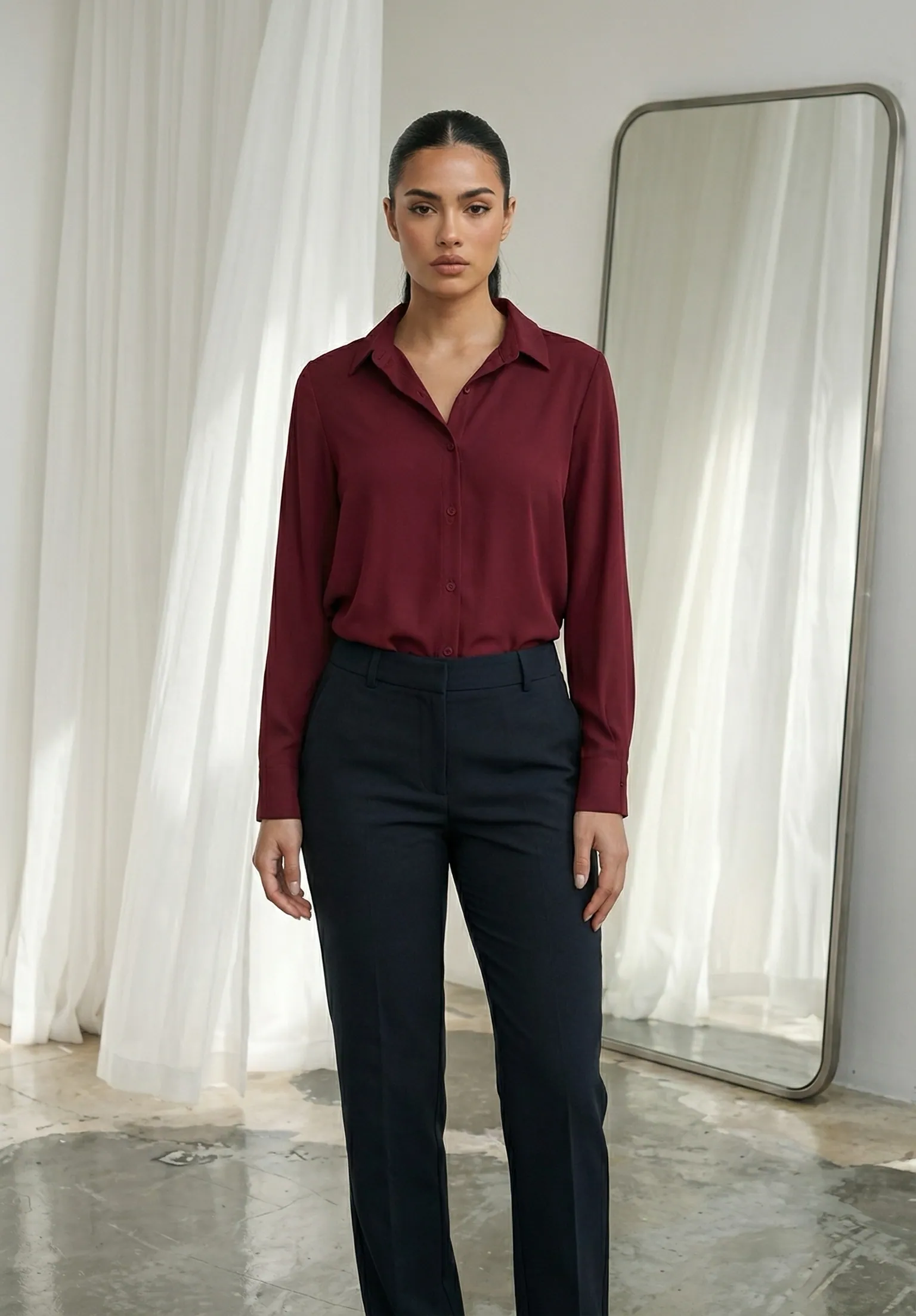
Write a short visual brief for the collection
Choose a background, camera distance and crop that suit the clothes you sell. A clean studio view can make the garment easy to inspect, while a restrained lifestyle setting can communicate styling. Pick a repeatable approach before generating a whole catalogue. Record a few decisions: front or three-quarter view, how much of the body is visible and where the hem should sit in the frame.
Consistency is useful when customers compare products side by side. It should not force every item into an unsuitable pose. A long coat needs room below the knee; a cropped top may need a closer view. Use a shared visual language with enough flexibility to show each garment clearly.
Build a source set for every SKU
Photograph each actual colour variant in even lighting, with the complete outline visible. Name source files with a stable product identifier and colour, such as shirt-104-burgundy-front.jpg. Keep the variant mapping in your own records rather than relying on a thumbnail or a memory of the upload order.
Small differences matter: contrast stitching, pocket shape or the finish of a button may distinguish two products. Capture these details separately. A generated angle cannot prove what the back of an item looks like if your source never showed it. Use actual back and detail photographs when you need that information.
Generate and approve a pilot product
In Novv, choose a model, upload your product and begin with a simple, readable pose. Test the proposed visual brief on one representative garment. Review the neckline, sleeves, closures and fabric surface before judging the styling. Save an approved example as your reference for the next items.
The burgundy shirt shown here illustrates a useful limitation: tucking it into trousers gives styling context but hides the original hem. You would still need another image to show the length and shape. Do not let a consistent art direction remove information a customer needs.
Give every gallery image a different purpose
A practical starting set is a clear front view, one on-model styling view, a real material close-up and a back view when relevant. This is a suggested editorial sequence, not a Shopify requirement. Add more images only when they answer a new question about the product.
In your theme preview, inspect both the collection grid and the product gallery. Check narrow screens, image zoom and any automatic cropping. Keep one consistent aspect ratio where your layout benefits from it, and leave enough room to avoid cutting off sleeves or hems. Use a real detail photograph when a wide composition makes the fabric unreadable.
Review variant accuracy before uploading in bulk
- Match every exported file to the correct product and colour.
- Compare visible seams, pockets, buttons and printed elements against the source.
- Check that the selected variant does not display an image of a different colour.
- Describe the visible product in concise alt text; avoid keyword lists.
- Verify that accessories in the scene are not described as part of the purchase.
Compress exports enough for a responsive gallery while preserving product detail, and inspect the actual uploaded result. There is no single image size that suits every theme and placement. Test your own layout before replacing an entire catalogue. Check Shopify’s product media documentation for current upload limits and supported formats before exporting a batch.
Separate visual styling from fit information
An AI-generated person is not a fitting session. The result may alter drape, garment length or how tightly the fabric appears to sit. Do not infer a model’s physical measurements or assign a real garment size from the image. Publish measurements and material information from the actual product, and keep customer-facing explanations factual.
If exact fit is central to the purchase, add real fit photography or another reliable reference. Keep your originals and approval notes so you can revisit a disputed detail. Review a sample of the live pages after any bulk upload, then expand the workflow once the images, variant mapping and theme presentation all hold up. A polished gallery helps explain a product; it does not guarantee a conversion increase.