AI product photos for Etsy: a practical listing workflow
Use AI to add context to a clothing listing, then check every image against the item you actually sell. Here is a practical workflow for building a useful photo set without losing product detail.
Start with the questions a buyer needs answered
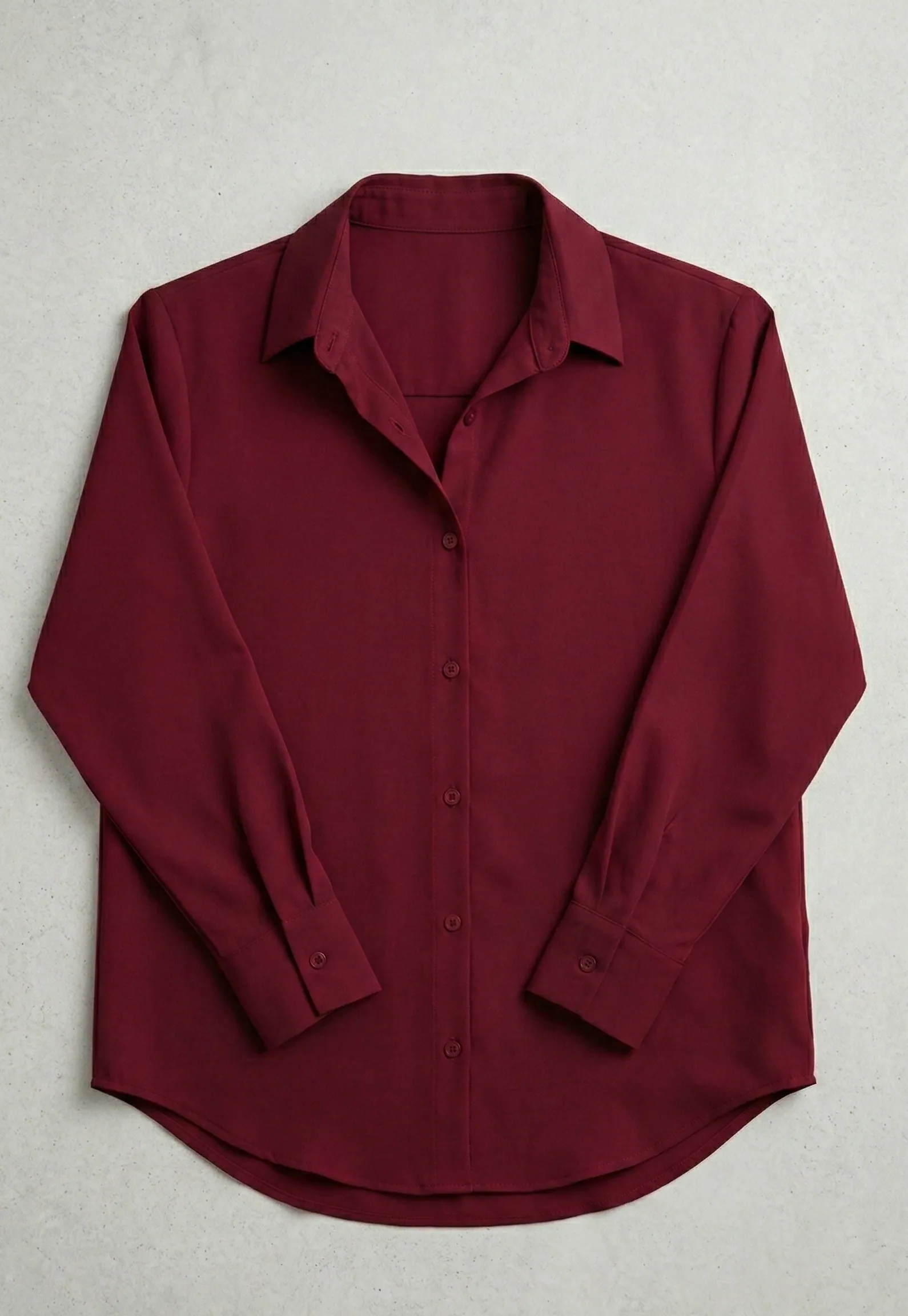
A shopper needs to understand what the garment looks like, which details belong to it and what they will receive. Before generating anything, write a small shot list: one clear overall view, one contextual on-model image, a close-up of the material and a useful view of any special detail. Photograph the actual item for evidence such as stitching, labels and fastenings.
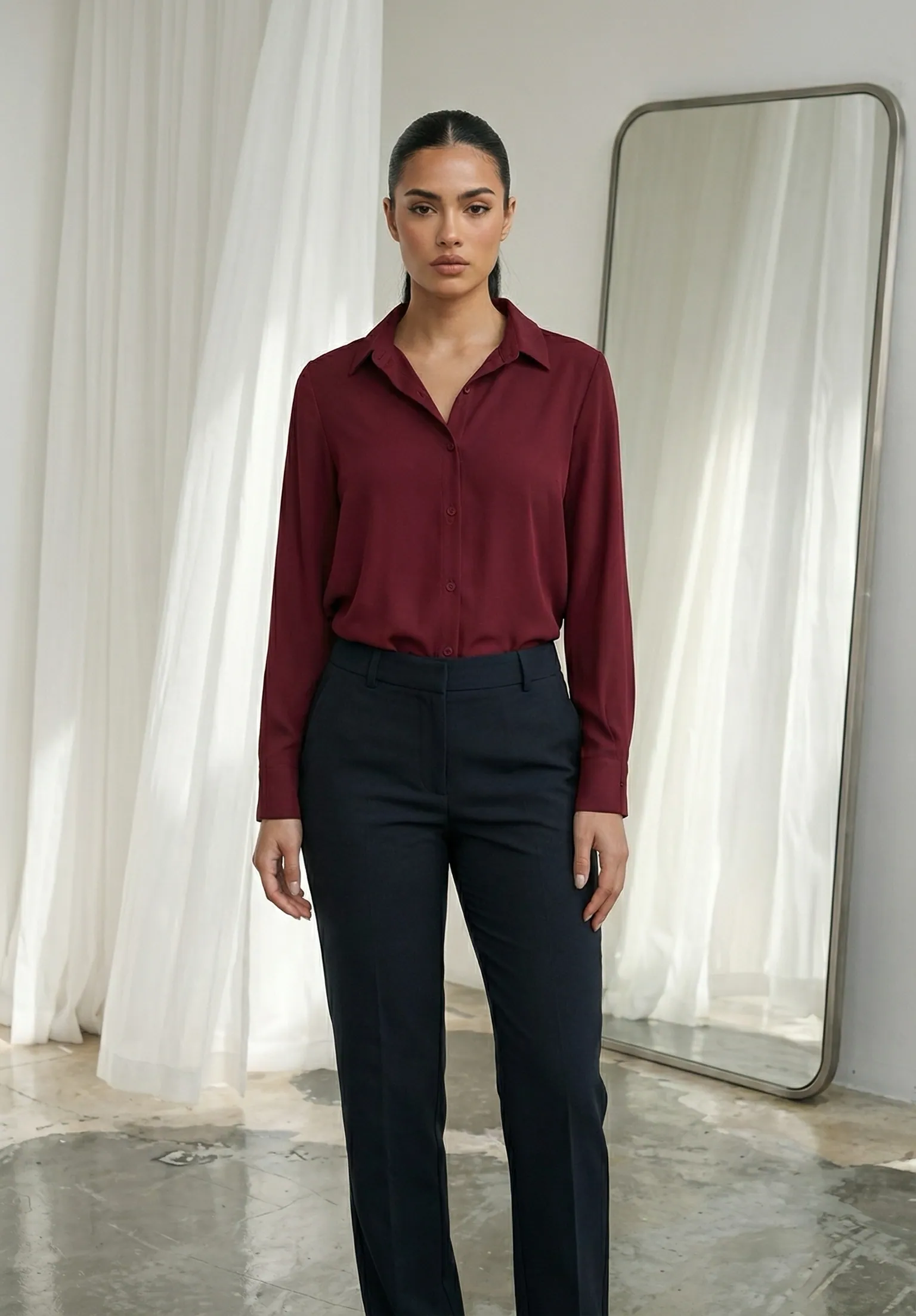
For a burgundy shirt, the overall view should show the collar and sleeve shape. The detail photo can show buttons and fabric texture. A lifestyle image can suggest an outfit. Give each image one job instead of filling the gallery with near-identical poses.
Capture a source photo that preserves the product
Lay the garment flat or hang it against a simple background. Use even light and keep the camera roughly parallel to the product. Smooth accidental folds without changing its shape. Include the full outline, and check that dark areas still show their seams. Avoid filters that shift the colour you need to reproduce.
If a print, embroidery or small label is important, take a separate close-up for your own review and listing. Do not assume the generator can recover detail that is blurry in the uploaded photo. Keep the unedited original next to your generated files. Give the files a product name and colour so you can repeat the check later, especially when similar garments appear in the same batch.
Create one controlled on-model image first
In Novv, choose a model, then upload your product. Start with a simple pose and an uncluttered setting so you can inspect the garment. A dramatic pose can hide the very details you need to check. Generate a small first batch before committing to a whole collection.
Compare the result with your source at full size. Did the collar change? Are there extra buttons? Did a straight hem become curved? Does the shirt still have the same pockets? Reject an attractive result when it changes the item. Regenerating is useful only if the next output passes the same review.
Use a publish-or-reject checklist
- Shape: neckline, sleeve length, hem and closures match the original.
- Surface: print, logo, stitching and texture contain no invented detail.
- Colour: compare against a neutral-light product photo, not memory.
- Styling: accessories do not suggest extra items are included.
- Fit: the picture makes no unsupported claim about measurements or how a specific size will fit.
An AI model cannot establish fabric weight, stretch or sizing. Use actual measurements and factual descriptions for those questions. When a critical feature cannot be reproduced reliably, use a real photograph for that view.
Build a gallery with different, useful views
Pair the approved lifestyle image with photographs of the real garment. Keep crops deliberate: the buyer should see the product, not an oversized background. Preview the cover image as a small square and on a phone; a full-length composition can make a small chest graphic almost invisible.
Use plain descriptions of what is visible when writing image text. For example, “Burgundy long-sleeve shirt with a pointed collar” is more helpful than repeating a string of search terms. Keep the written listing consistent with the photographs, including which colour and variant are shown.
Keep a record and improve one listing at a time
Save the original, approved output and a note of the variant shown in a folder named for the product. If the supplier changes the blank or you alter a design, review the images again. An old attractive picture can become inaccurate even when the listing title stays the same.
Start with one listing and check it on desktop and mobile before repeating the process. Record which image you changed and when, so later observations have context. Before publishing, apply Etsy’s listing image requirements to your product type. Most products need an unedited photograph of the actual item against a real background. Keep that photo untouched; additional AI-assisted images must remain accurate. For handmade customized items, show real finished examples. Read the separate POD exception if a production partner prints your design on a standard blank. Policy checked 26 October 2026.